 limber
174 Hz
Movement and meditation alarms
When it rings,
you move.
Set alarms through the day for a stretch, push-ups, jumping jacks, or a few minutes of meditation. When one rings, your iPhone’s camera checks you did the move, then the alarm stops.
Made for iPhone · iOS 26 or later.
A LITTLE MOVEMENT, ALL DAY
How it works
From the alarm
to the move.
Pick a move for each alarm. When it rings, Limber checks it with your camera, right on your iPhone.
- 01
Set alarms through the day
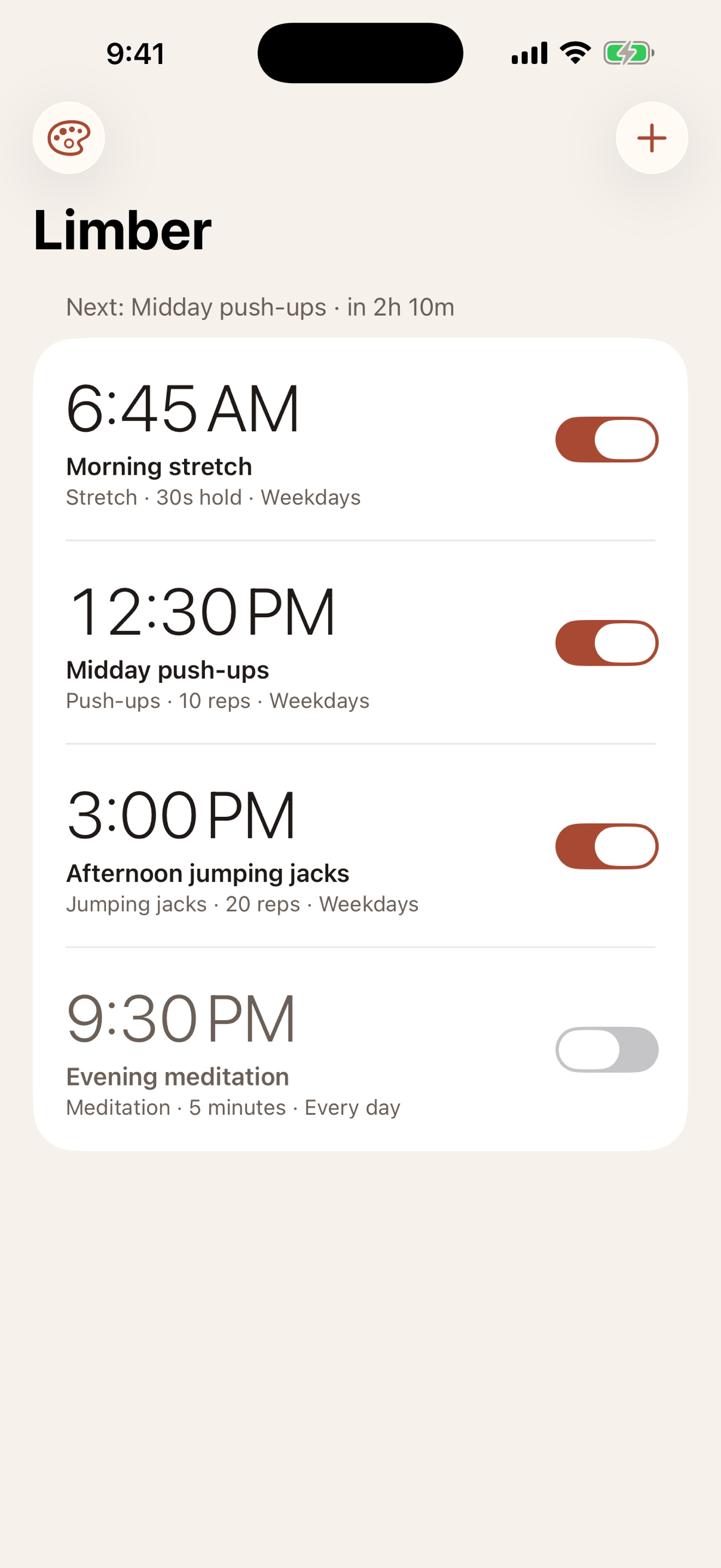
Add up to 10 alarms, each with its own time, repeat days, move, goal, and sound: a morning stretch, midday push-ups, an evening meditation.
- 02
When it rings, start your move
Tap Start Limber, set your iPhone where the camera can see you, and stretch, do your reps, or sit and meditate.
- 03
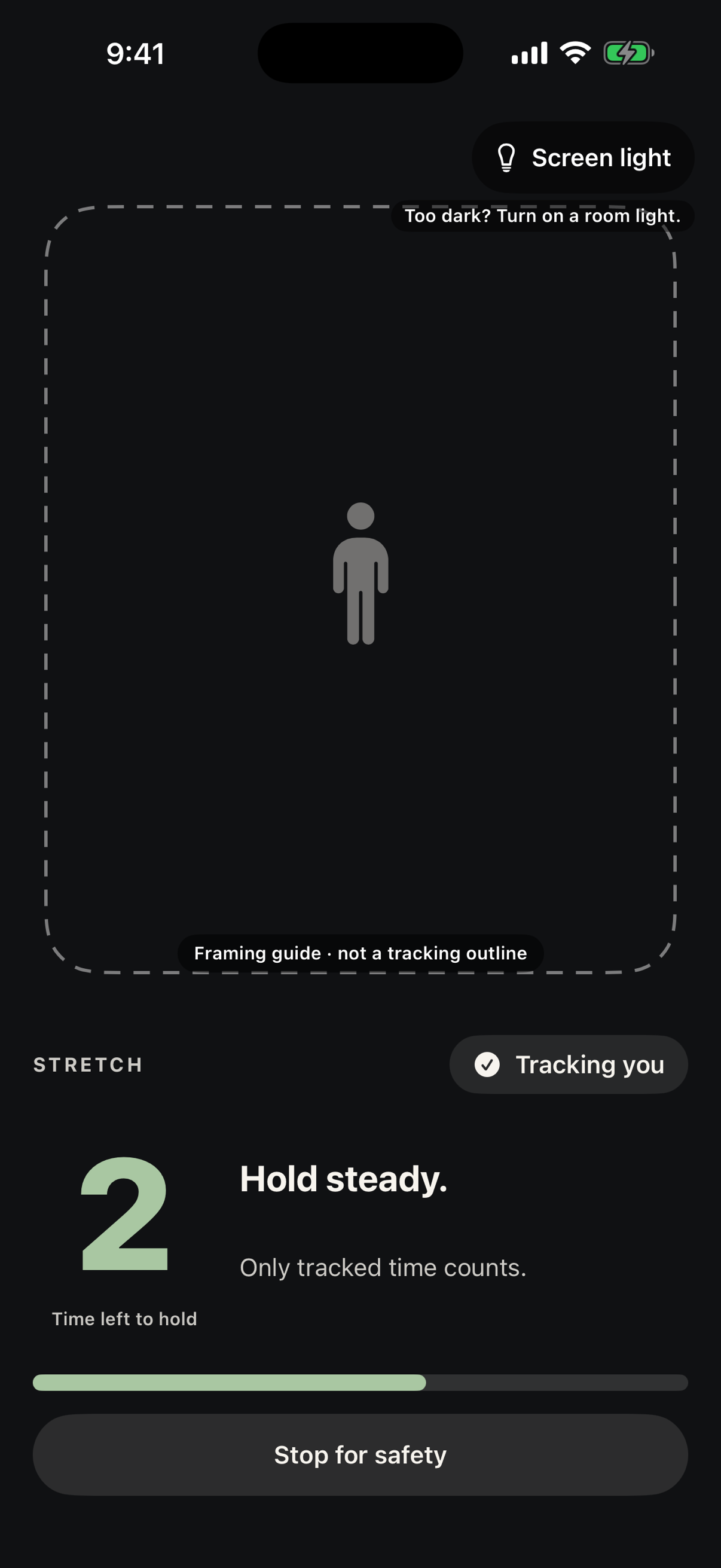
The camera checks it, the alarm stops
Limber counts your hold time or reps on-device. Reach your goal and the alarm stops. Stop for safety is always there if you need it.
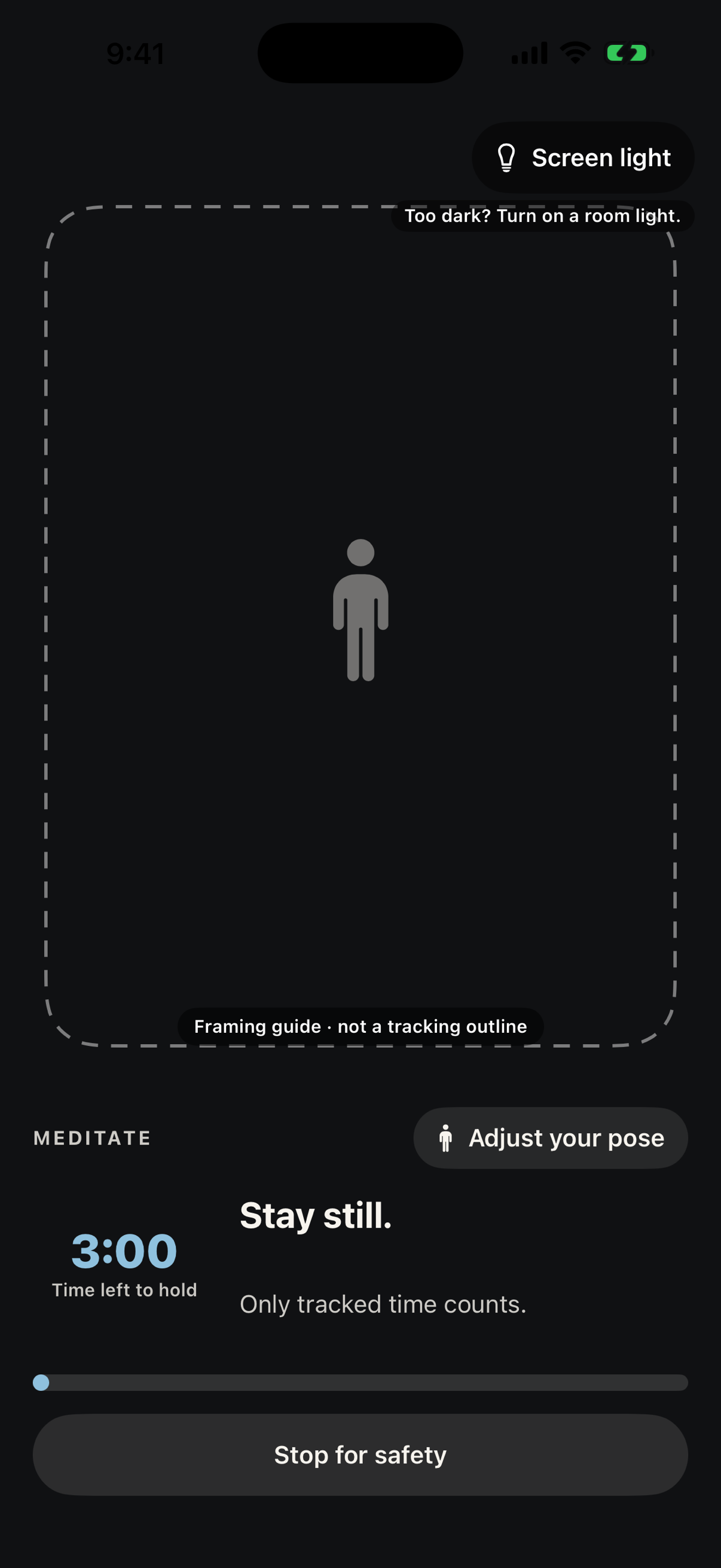
The camera check runs on your iPhone; nothing the camera sees is recorded, saved, or uploaded. If the camera can’t see you, Use manual backup lets you hold a button for 15 seconds instead. Test your first alarm with your iPhone locked before relying on Limber.
Find your alarm sound
A softer place
to start.
Nine tones to explore. Tap for a 10-second sample, and choose the one you enjoy.
Pick a sound for each alarm in the app, along with one of three themes: Sunrise, Midnight, or Ocean. Names describe the sounds; they are not health claims.
285 Hz
Restoration
396 Hz
Grounding
417 Hz
New Beginnings
528 Hz
Soft Focus
639 Hz
Love & Connection
741 Hz
Inner Calm
852 Hz
Awaken Intuition
963 Hz
Stillness
Samples play only when you press Play. Start with your volume low.
Pricing
Make it part
of your day.
Three ways to get Limber. All three plans include the same features; choose monthly, yearly, or one-time billing.
Monthly
$1.99 / month
Three-day free trial if eligible, then billed monthly.
Auto-renewing subscriptionYearly
$15 / year
Three-day free trial if eligible, then billed yearly.
Auto-renewing subscriptionLifetime
$54.99 once
One purchase for ongoing access. No trial.
One-time, non-renewing purchaseThe three-day free trial is Apple-managed and available to eligible new subscribers on the monthly and yearly plans. Apple allows one introductory trial per subscription group. The trial starts only after you approve Apple’s purchase sheet.
After the trial, your selected plan auto-renews unless canceled through Apple at least 24 hours before the trial or current billing period ends. Prices shown are in US dollars (USD); localized App Store prices and the terms in Apple’s purchase sheet are authoritative. Availability may vary by region.
Lifetime has no trial and does not renew. Buying lifetime does not cancel an existing subscription; manage or cancel it separately through Apple.
There is no website checkout: you choose a plan in the app and pay through Apple. Manage or cancel a subscription in iOS Settings → your name → Subscriptions, use Restore Purchases on the Plans screen, and request refunds through Apple’s Report a Problem.
If your access ends, alarms you already scheduled and their repeats keep working, and safety controls stay available. Adding or changing alarms needs an active plan.
Get Limber
Make your next
alarm a move.
Limber: Movement Alarms is for iPhone with iOS 26 or later. Choose a plan in the app; eligible new subscribers can start with a three-day free trial on the monthly or yearly plan.
Coming soon to the App StoreInvite a friend
Know someone who’d like a little more movement in their day? Send them a note with the App Store link.
You choose who to send it to. Limber does not access your contacts.
Read or copy the invitation
Your first day
- Install Limber and tap Allow alarms when asked.
- Add an alarm, pick a move and goal, and run the one-time camera check until you see Camera ready.
- Tap Test my alarm, lock your iPhone, and make sure you hear it. The help page walks you through it.
Keep a backup for what mattersFor wake-ups you can’t miss, keep a backup alarm in the Clock app until you’ve tested Limber on your own iPhone.
How do I get Limber?
Limber is coming soon to the App Store for iPhone with iOS 26 or later. Use the App Store link, or search for “Limber: Movement Alarms”. You choose a plan in the app, and Apple handles payment.
Does it use my camera?
Yes, to check your move. Camera frames are processed on-device with Apple’s Vision framework and are never recorded, saved, or uploaded. Limber has no accounts, ads, or analytics. Read the privacy notice for details.
Can I stop an alarm without doing the move?
Yes. iOS always offers a Stop button that silences the alarm without the move, and Stop for safety is always available inside Limber. Always put your comfort and safety first.
Can I rely on it for important wake-ups?
Test your alarm with your iPhone locked before relying on Limber, and keep a backup alarm for anything you can’t miss. Whether an alarm sounds depends on your iPhone’s settings, volume, and battery. The help page explains what to check.
Do the frequencies have health benefits?
These are sound options to choose by preference. Limber makes no medical or therapeutic claims about the tones, stretching, exercise, or meditation.